> For the complete documentation index, see [llms.txt](https://enterprise.hideez.com/llms.txt). Markdown versions of documentation pages are available by appending `.md` to page URLs; this page is available as [Markdown](https://enterprise.hideez.com/hideez-authenticator-app/user-guide/software-key-enrollment/sso-enrollment/sso-enrollment-admin-account.md).

# SSO enrollment (admin account)

### **Enabling the second factor for the admin account**

To enable login with Hideez Authenticator as a second factor for the user account, please, follow this [guide](https://enterprise.hideez.com/hideez-enterprise-server/administration/how-to-enable-two-factor-authentication-at-hideez-enterprise-server).

### **Enabling the second factor for the user account**

To enable login with Hideez Authenticator as a second factor for the user account, please, follow this [guide](https://enterprise.hideez.com/hideez-enterprise-server/single-sign-on-settings/nastroika-polzovatelei).

## Hideez Authenticator enrollment <a href="#hideez-authenticator-enrollment" id="hideez-authenticator-enrollment"></a>

To use Hideez Authenticator, first you need to enroll the mobile app on Hideez Enterprise Server (HES). To do this, follow simple steps:

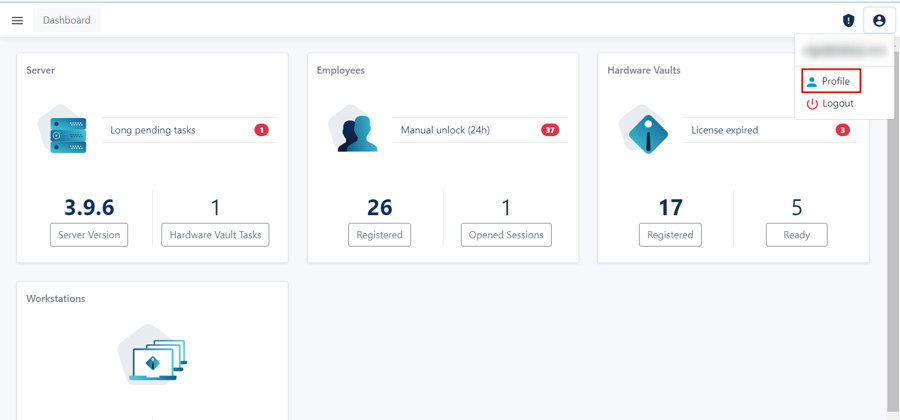
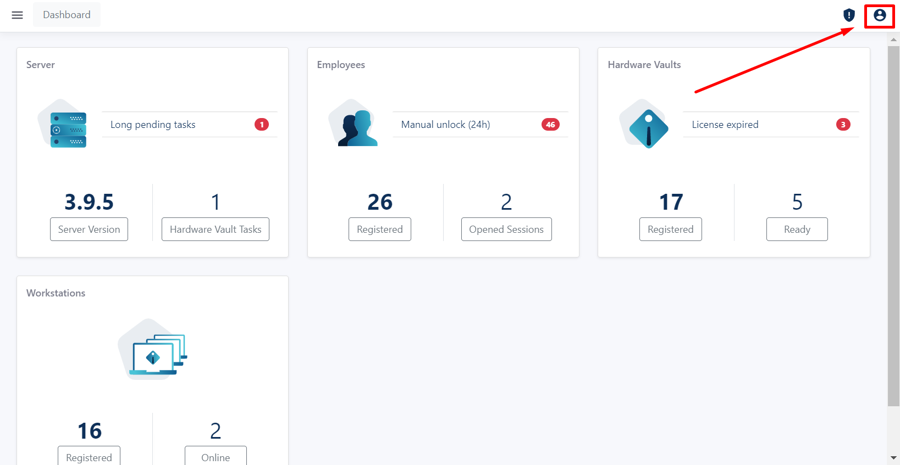
1. Open your HES and go to the “Profile” section.

   <div align="center"><figure><img src="/files/PA71Gh4CGfWHZKrN0W6L" alt="" width="563"><figcaption></figcaption></figure></div>

   <figure><img src="/files/akHNmEi7XhwZESDEMfUw" alt="" width="563"><figcaption></figcaption></figure>
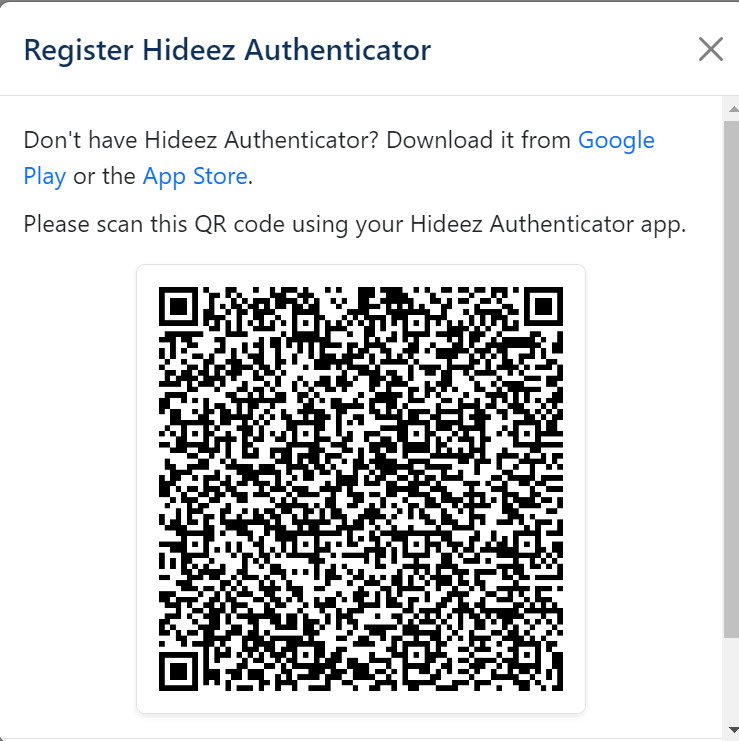
2. Go to the “Mobile App” section and click the “Register Hideez Authenticator” button.  Here you can download Hideez Authenticator for your OS from Google Play or App Store via corresponding links.

   <figure><img src="/files/hwrv5R7LnNfFLrzzRDLS" alt="" width="563"><figcaption></figcaption></figure>

   <figure><img src="/files/muX9K14HhJTR76PZwC03" alt="" width="370"><figcaption></figcaption></figure>
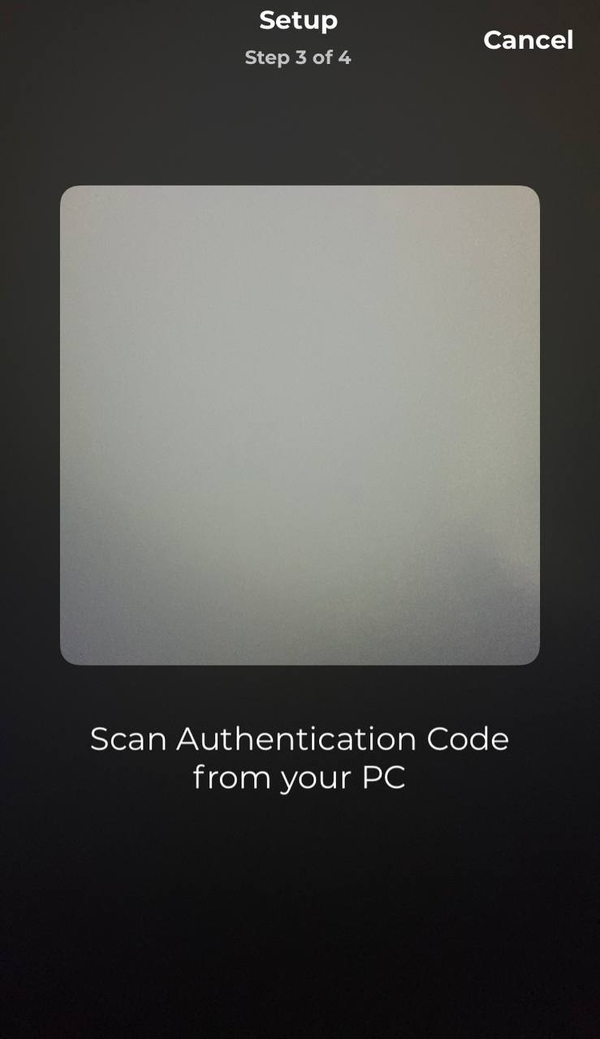
3. Open Hideez Authenticator and scan the QR code on HES.&#x20;

<figure><img src="/files/vMg2ycbejfiVgm5wASIn" alt="" width="300"><figcaption></figcaption></figure>

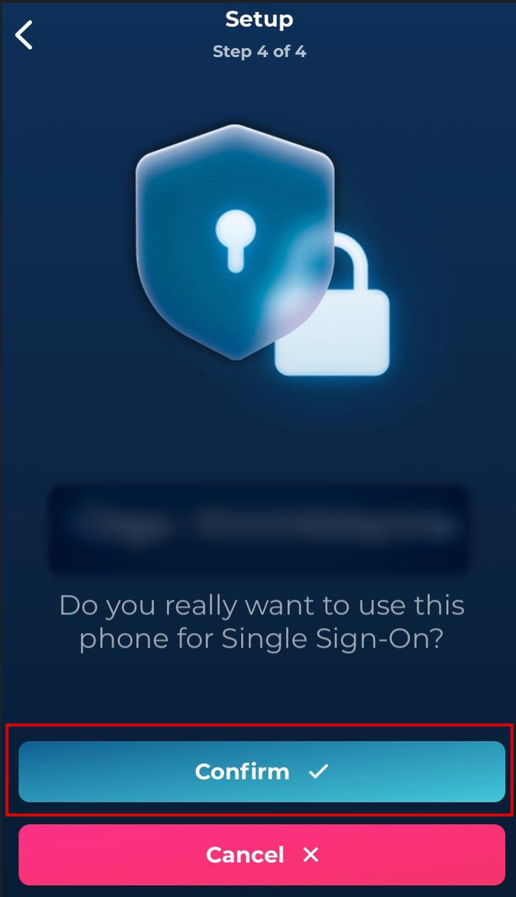
4. Confirm SSO enrollment on Hideez Authenticator.&#x20;

<figure><img src="/files/UolNADkjaNZLyW8TRfeV" alt="" width="258"><figcaption></figcaption></figure>

5. That is all set. Now you can log in on HES with the Hideez Authenticator. <br>

---

# Agent Instructions
This documentation is published with GitBook. GitBook is the documentation platform designed so that both humans and AI agents can read, navigate, and reason over technical content effectively. Learn more at gitbook.com.

## Querying This Documentation
If you need additional information that is not directly available in this page, you can query the documentation dynamically by asking a question.

Perform an HTTP GET request on the current page URL with the `ask` query parameter, and the optional `goal` query parameter:

```
GET https://enterprise.hideez.com/hideez-authenticator-app/user-guide/software-key-enrollment/sso-enrollment/sso-enrollment-admin-account.md?ask=<question>&goal=<endgoal>
```

`ask` is the immediate question: it should be specific, self-contained, and written in natural language.
`goal` is optional and describes the broader end goal you are ultimately trying to accomplish on behalf of the user. GitBook uses it to tailor the answer towards what is most useful for that goal.

The response will contain a direct answer to the question and relevant excerpts and sources from the documentation.

Use this mechanism when the answer is not explicitly present in the current page, you need clarification or additional context, or you want to retrieve related documentation sections.