> For the complete documentation index, see [llms.txt](https://enterprise.hideez.com/llms.txt). Markdown versions of documentation pages are available by appending `.md` to page URLs; this page is available as [Markdown](https://enterprise.hideez.com/quick-start-guides/fido2-and-u2f-authentication-guide/activation-fido-key-and-setting-pin-code.md).
# Activation FIDO key and setting PIN code
{% hint style="info" %}
Hideez Key supports two authentication standards developed by the [FIDO Alliance](https://fidoalliance.org/): FIDO U2F and FIDO2.
{% endhint %}
1. Select **Start** > **Windows Settings** > **Account** > **Sign-in options** > **Security Key** > **Manage**
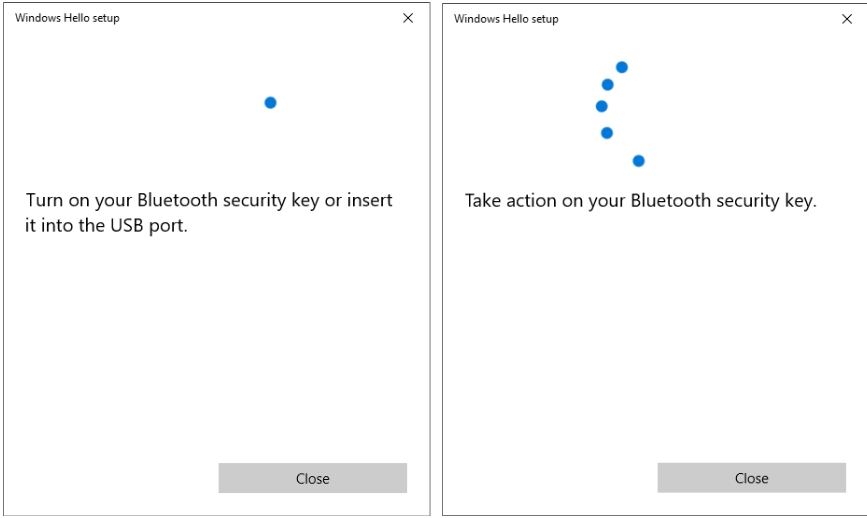
2. After clicking on the **Manage** button, the Hideez Key will require confirmation of this operation with a short press on the button. If you don’t confirm it in 20 seconds, Windows reports the problem and restarts the operation. \
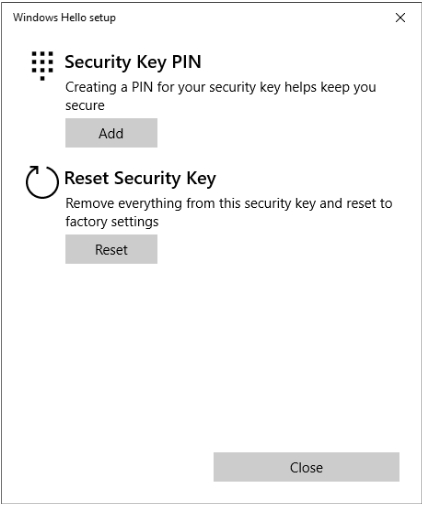
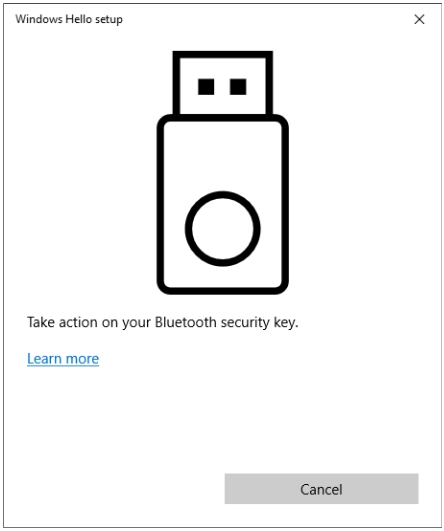
3. When the message “Take action on your Bluetooth security key” appears, confirm it with a short press on the Hideez Key button. A "Windows Hello setup" window appears with the menu "Add Security Key PIN" and "Reset Security Key".
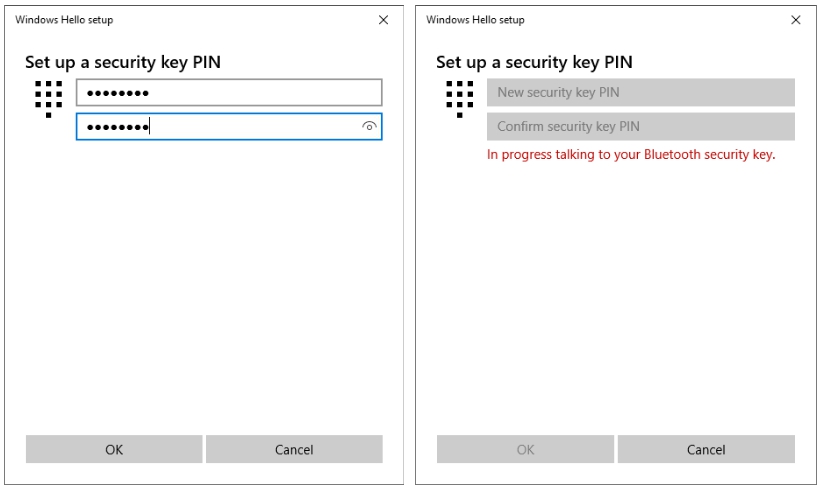
1. Select “Add PIN to Security Key” and enter the same PIN code containing 4 to 32 digits twice.\
### **Changing PIN code for the FIDO technology**
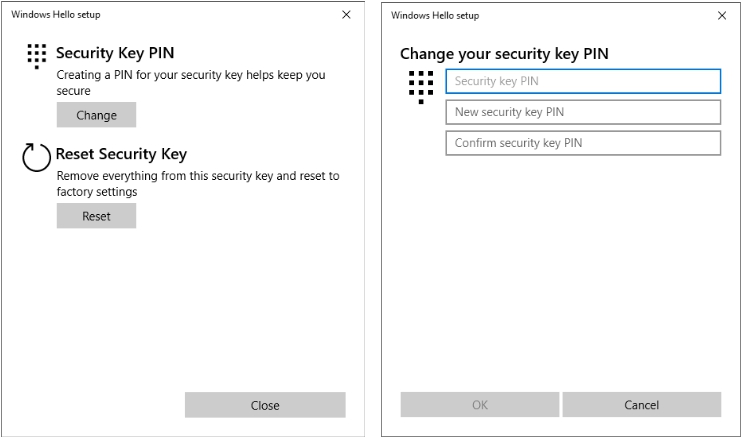
Go to the “Windows Hello setup” section and select “Change Security Key PIN” to change the PIN code. Next, you need to type your old PIN followed by a new one (twice) and click “OK”.\
### **Removing PIN code and clearing all FIDO data**
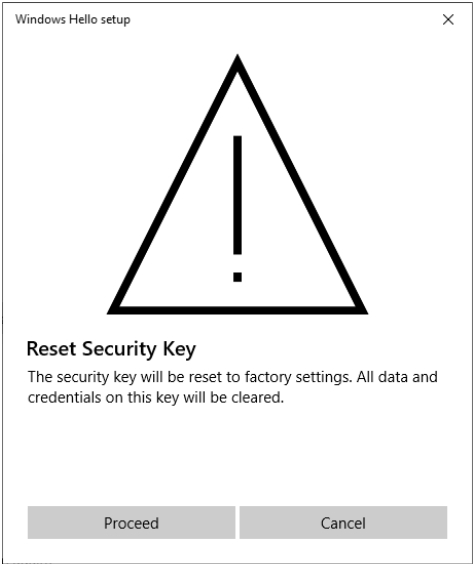
1. Enter the “Windows Hello setup” section and select “Reset Security Key” and then “Proceed” to remove the PIN code and FIDO data. \
2. Each time the message “Take action on your Bluetooth security key” appears, confirm it with a short press. This action must be confirmed twice.\
\
[Video](https://youtu.be/baczWo7j73M)
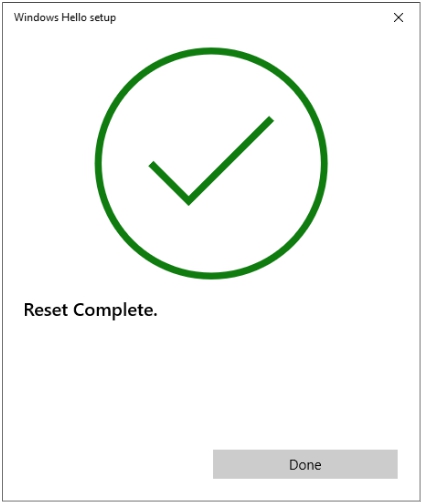
3. The success of the operation is signaled by the message “Reset Complete”. After that, all data associated with FIDO (PIN, accounts, resident key) will be removed.\
### Set up two-factor authentication using FIDO U2F
To set up two-factor authentication using FIDO U2F in Gmail, Facebook, Twitter and/or a host of other services, no additional software is needed. Please, follow the instructions of U2F-supporting services to use Hideez Key as your second factor. Here are some of them: