> For the complete documentation index, see [llms.txt](https://enterprise.hideez.com/llms.txt). Markdown versions of documentation pages are available by appending `.md` to page URLs; this page is available as [Markdown](https://enterprise.hideez.com/quick-start-guides/quick-start-guide-for-subscriptions/passkeys.md).
# Passkeys
Passwordless SSO with Passkeys
### 1. Sign in to your Hideez server using your email and password
{% hint style="info" %}
**Note**: If you see the message “Your web application is running and waiting for your content,” the server is not ready yet. The process may take from 5 to 10 minutes. Once the server is ready, you will receive an email confirmation.
{% endhint %}
### **2. Create Passkeys:**
{% hint style="info" %}
**Passkeys** are a new way of signing in to your online accounts with a **biometric sensor** or PIN, eliminating the need for **passwords.**
{% endhint %}
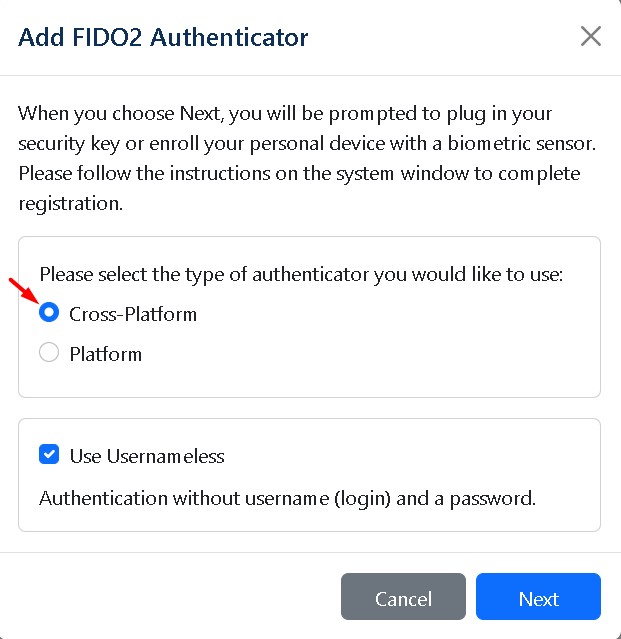
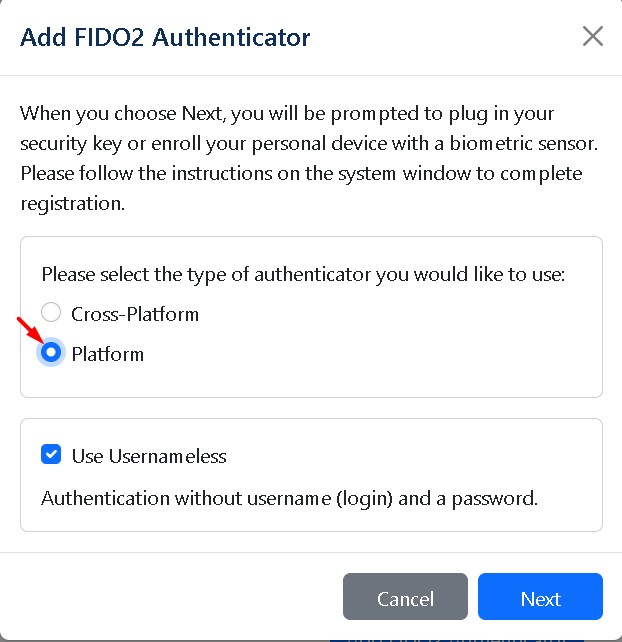
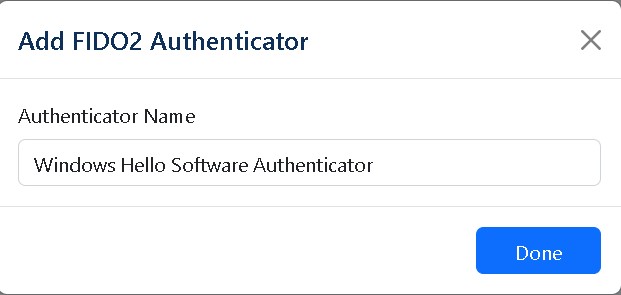
* To create a passkey, go to the **Profile** page, then the **FIDO2 Authenticators** section, and click **Add FIDO2 Authenticator**.
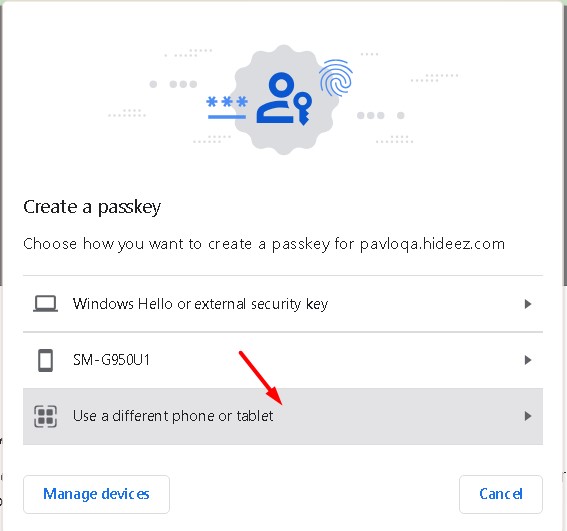
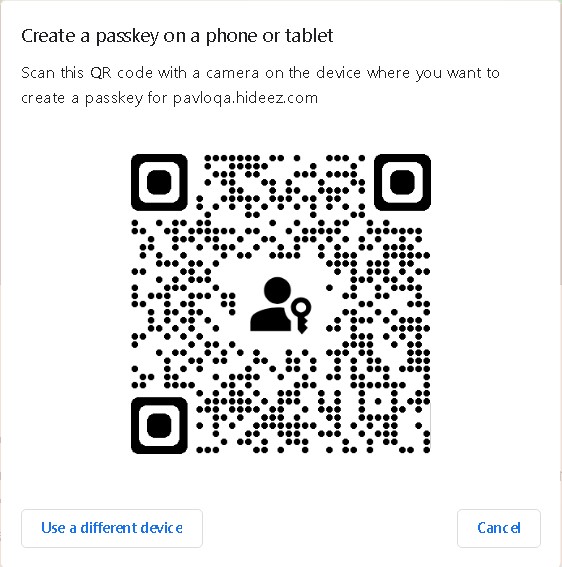
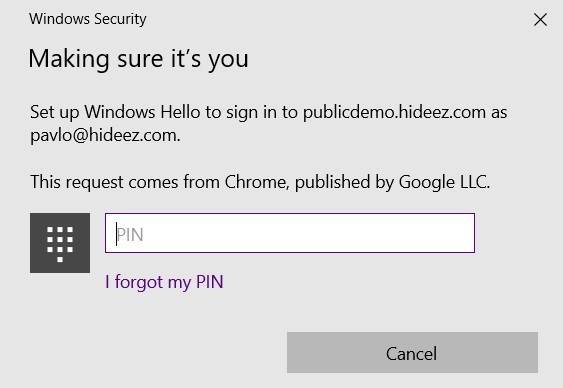
* Following the on-screen steps, add a FIDO2 Authenticator, choosing between a **Cross-Platform key** (another device, like a phone or tablet) or a **Platform key** (current device).
Adding a [**Cross-Platform key:**](/use-cases/passkey/sso-login-to-web-services-fido2-via-passkey-and-hideez-server-as-identity-provider.md)
Adding a [**Platform key**](/hideez-enterprise-server/administration/platform-authentication-on-the-hes-server.md)
{% hint style="info" %}
Note: Multiple devices can be added simultaneously.
A **biometric sensor** or **Trusted Platform Module** **(TPM)** module must be present.
{% endhint %}
### 3. Configure Passwordless SSO**:**
Hideez Server allows you to enable passwordless Single Sign-On (SSO) based on the SAML and OpenID Connect (OIDC) protocols. These protocols are employed to verify a user’s identity when an employee tries to access web or mobile applications.
To configure the Hideez Server as an Identity Provider for passwordless SSO, go to Settings → Parameters, and proceed with [**SAML**](/hideez-enterprise-server/configuring-saml-protocol.md) or [**OIDC**](/hideez-enterprise-server/configuration-oidc-openid-connect.md) configuration as described in our user guide.
### **4. Add a New user:**
New users can be added through:
* [**Active Directory (On-Premises, Azure Ad)** ](/hideez-server-integration/microsoft-entra-id/import.md)
* [**Manually**](/hideez-enterprise-server/employees/how-to-add-an-employee.md)
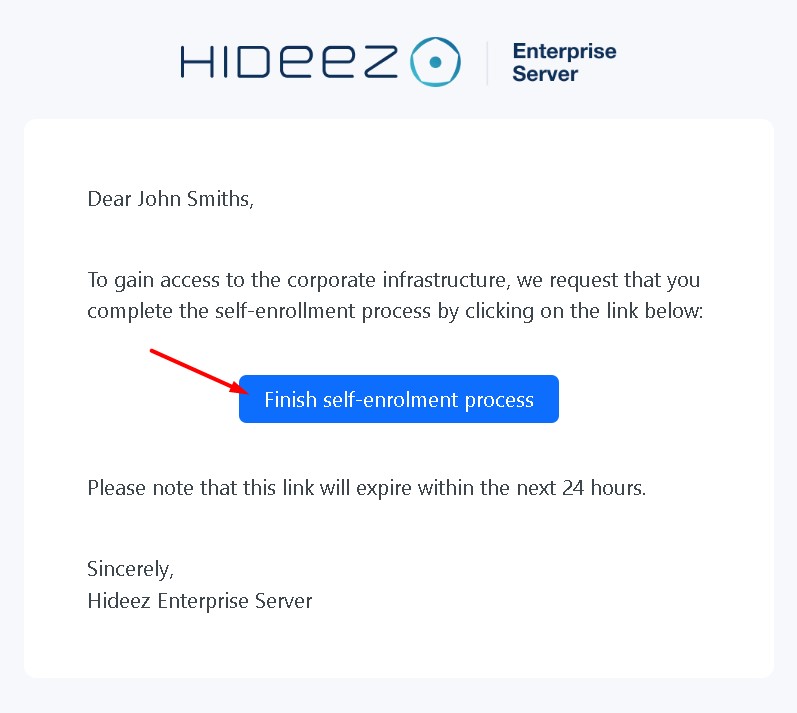
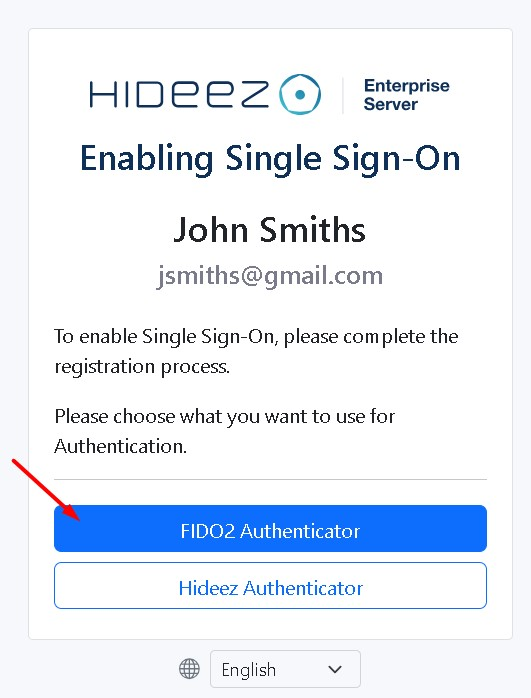
Upon receiving an email, users can configure their preferred login methods, such as a [**mobile application**](https://authenticator.hideez.com/user-guide/android-guide/login-with-hideez-authenticator/sso-login/sso-passwordless-login) or passkeys.
Additionally, the Hideez Server assumes that passwordless authentication can be employed alongside other methods
* [**Mobile Application**](/quick-start-guides/quick-start-guide-for-subscriptions/hideez-authenticator-guide.md) allows Passwordless SSO and PC login with Mobile App
* [**Hardware keys**](/quick-start-guides/quick-start-guide-for-subscriptions/hardware-key-guide.md) allow Passwordless SSO, PC logon & logoff, password-based authentication
%20(1).jpg)
.jpg)
.jpg)