> For the complete documentation index, see [llms.txt](https://enterprise.hideez.com/llms.txt). Markdown versions of documentation pages are available by appending `.md` to page URLs; this page is available as [Markdown](https://enterprise.hideez.com/use-cases/hideez-authenticator-mobile-app/using-hideez-authenticator-as-an-otp-generator-for-your-two-factor-authentication.md).
# OTP generation by Hideez Authenticator App for 2FA
Hideez Authenticator allows user to generate One-Time Passwords for [Two-Factor Authentication](https://fidoalliance.org/specs/u2f-specs-master/fido-u2f-overview.html) mechanism.
To use OTP generation feature first you have to [enroll your Hideez Authenticator on HES](/use-cases/hideez-authenticator-mobile-app/using-hideez-authenticator-as-your-two-factor-authentication-method-for-sso.md).
## Set up two-factor authentication for your Gmail account
### Step 1: Enable two-factor authentication according to [Google’s instructions](https://support.google.com/accounts/answer/1066447?hl=en\&co=GENIE.Platform%3DAndroid\&oco=0).
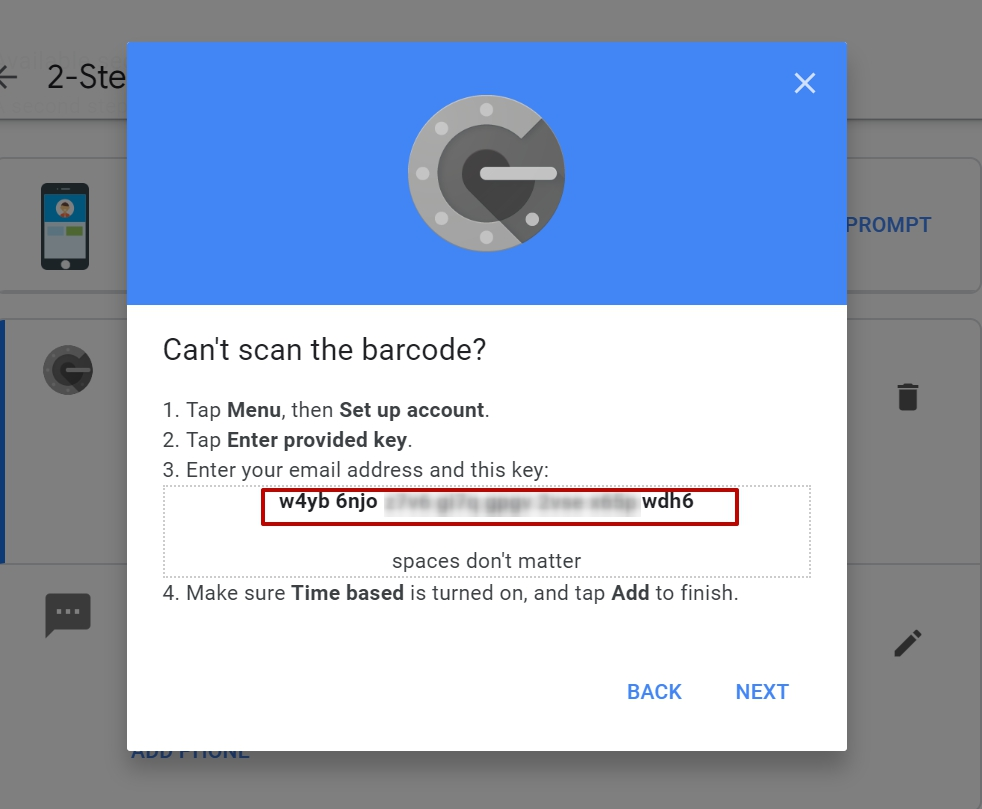
### Step 2: Open a secret key to generate OTP passwords in the account data.
To do this, go to account editing mode and
**OR**
when setting up Google Authenticator, click **CAN'T SCAN IT?**\

### Step 3: Add OTP account
You can add an OTP secret either by scanning a QR code or manually.
1. Open the "Accounts" section.\
\

2. Tap the "+" button.\
\

3. Then you can either scan QR code from the Google account settings or enter it manually:
* Scan a QR code:\
\

* Tap "Add manually" button:\
\
\
\
Type the account name and secret key in the corresponding fields.\
\
\
\
You also can provide advanced parameters such as a OTP length, Hash Algorithm and valid period. Just switch the "Advanced options" trigger to set them up.\
\
 \
\
Tap the "Add" button.\
\

### Step 4: Confirm OTP in your Google account
1. Then click on the **Next** button. Enter OTP that is displayed in Hideez Authenticator, "Accounts" section.\
\
 
2. Click **Verify**.\
\

## Sign in to your Gmail account with two-factor authentication
### Step 1: Visit the account login page
### Step 2: Enter your credentials (login and password)
### Step 3: Choose Google Authenticator app second-factor authentication method
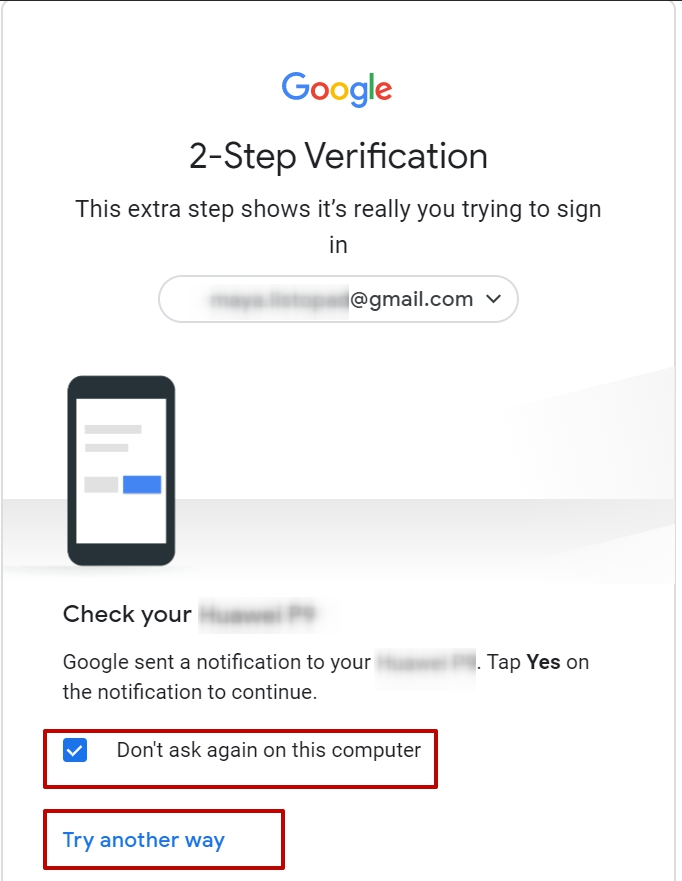
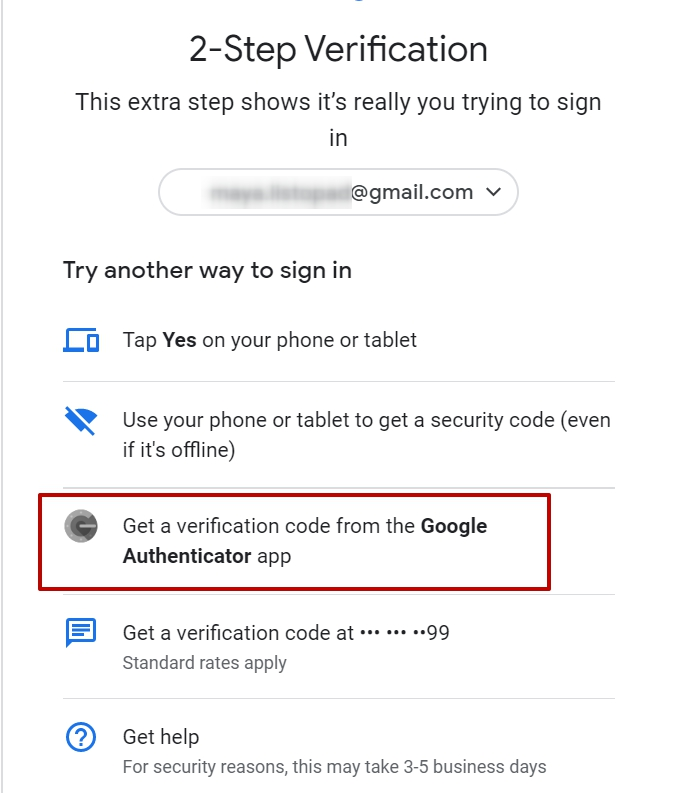
Indicate whether you want to always pass two-factor authentication on this computer or not - clear or leave the checkbox **Don’t ask again on this computer** and also select **Try another way** and **Get a verification code from the Google Authenticator App:**
### **Step 4: Enter OTP code**
Enter OTP that is displayed in Hideez Authenticator, "Accounts" section and click the **Next** button.\
\
 
You can find more on OTP generation in Hideez Authenticator - [*iOS*](https://authenticator.hideez.com/user-guide/ios-guide/otp-generation), [*Android*](https://authenticator.hideez.com/user-guide/android-guide/otp-generation).