> For the complete documentation index, see [llms.txt](https://enterprise.hideez.com/llms.txt). Markdown versions of documentation pages are available by appending `.md` to page URLs; this page is available as [Markdown](https://enterprise.hideez.com/hideez-authenticator-app/user-guide/login-with-hideez-authenticator/sso-login.md).
# SSO login
## SSO passwordless login
1. [Enroll the software key on HES](https://authenticator.hideez.com/user-guide/ios-guide/software-key-enrollment/sso-enrollment).
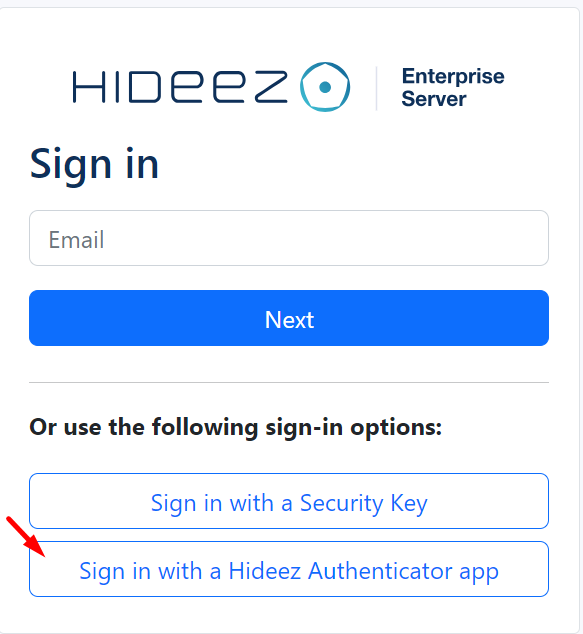
2. Click the “Sign in with a Hideez Authenticator App” button on the web browser.
3. Open the Hideez Authenticator App and scan the QR code.
4. Confirm the login at the Hideez Authenticator.
## SSO login as a second factor
1. [Enroll the software key on HES](https://authenticator.hideez.com/user-guide/ios-guide/software-key-enrollment/sso-enrollment).
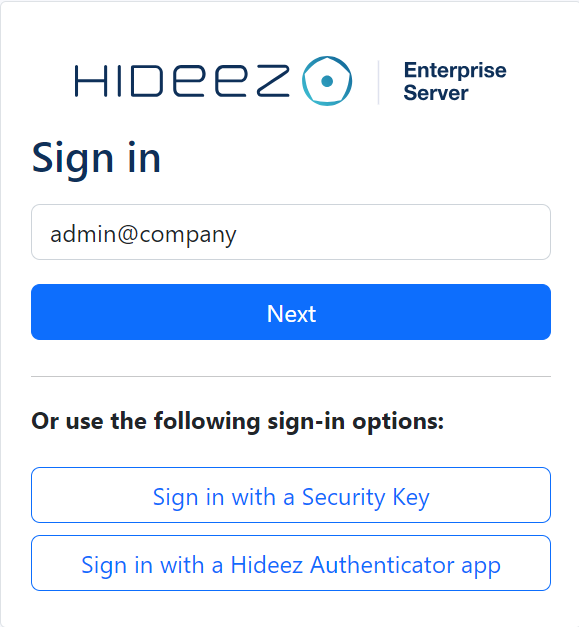
2. Type your email and click the "Next" button.
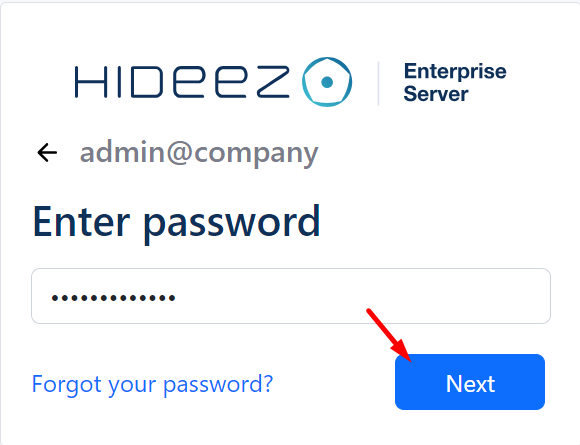
3. Type your password and click the "Next" button.
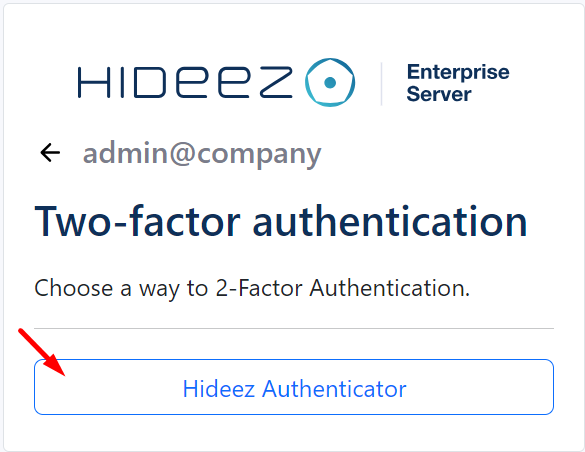
4. Click the "Hideez Authenticator" button.
5. Open the Hideez Authenticator App and scan the QR code.
6. Confirm the login at the Hideez Authenticator.
{% hint style="info" %}
Also, for some devices, it is possible to scan the code directly from the smartphone camera, this will redirect you to Hideez Authenticator.
{% endhint %}